
Milliseconds to seconds
AutoClicker expresses each target’s delay in milliseconds. 1,000 ms is one second; 500 ms is half a second. The current extension accepts target delays from 10 to 60,000 ms. That range is a setting limit, not a promise that the browser or webpage will keep exact timing.
| Delay | Time | Useful starting point |
|---|---|---|
| 100 ms | 0.1 seconds | A simple local test after checking behavior |
| 500 ms | 0.5 seconds | Watching a short sequence |
| 1,000 ms | 1 second | Giving a visible interface more time |
| 5,000 ms | 5 seconds | A step that needs a longer pause |
Per-target delays
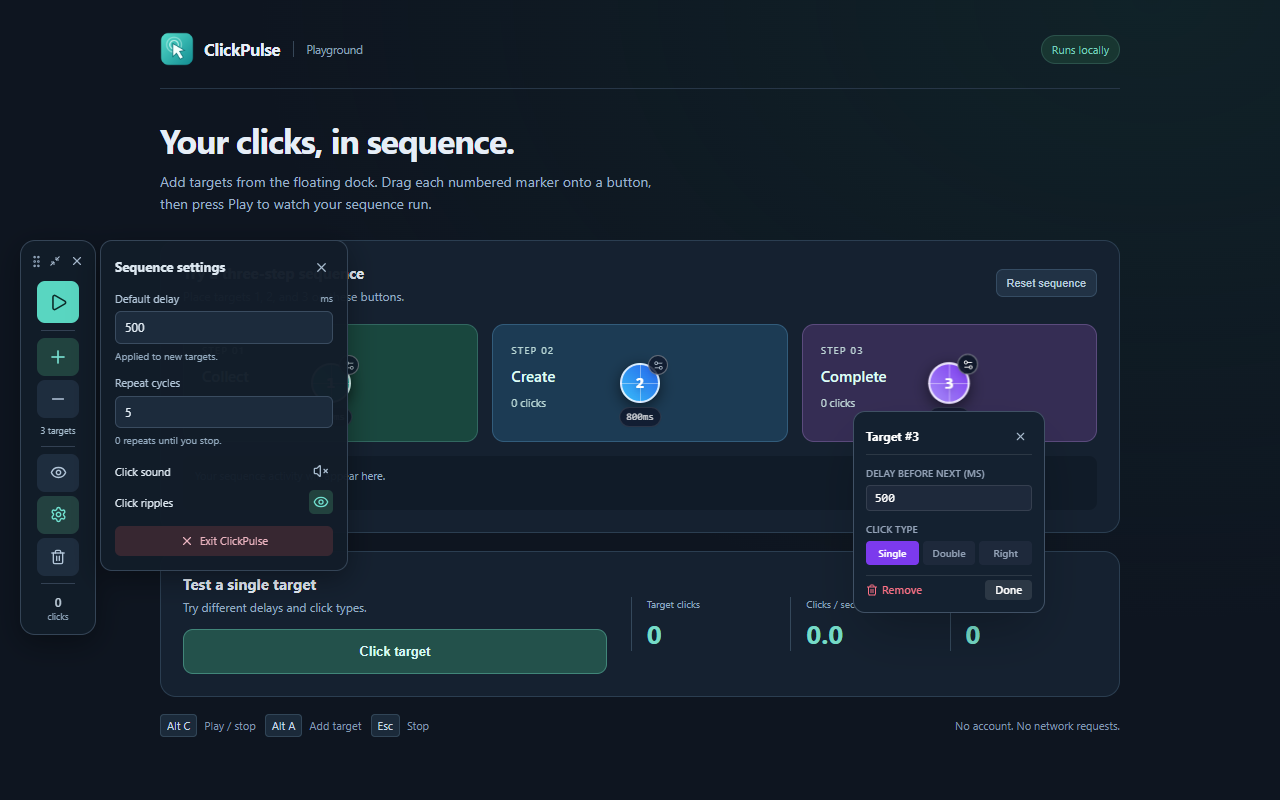
Open each target’s settings to set its delay. After that target is activated, its delay controls the wait before the next target. A sequence with three 500 ms delays has a nominal repeat period of about 1.5 seconds, plus execution overhead. The final visit may stop immediately when the repeat limit has been reached.
Fixed repeats and continuous clicking
A repeat count of 3 runs the whole target list three times. A count of 0 repeats continuously until stopped. Begin with 1 cycle, confirm the result, and increase the count only after checking it. Escape and the Stop control remain available while the sequence is active.
Why the actual interval can vary
Browsers can throttle timers in background tabs. A busy webpage, a slow request, or a device under load can also delay an action. The extension does not wait for a server response or automatically detect that a workflow step is complete. Keep the page visible and choose a delay that works in your test.
If you miss clicks or see the wrong sequence, stop and review the troubleshooting checklist.