A sequence, not just a click.
Add numbered targets and drag them onto the page. Your sequence follows your order, one target at a time.
123
Meet AutoClicker, your visual auto clicker for Chrome and Brave. Place your targets, set the pace, and let the little things take care of themselves.
Three targets. One smooth sequence.

Nothing complicated to learn. Just the right controls, exactly where you need them.
Add numbered targets and drag them onto the page. Your sequence follows your order, one target at a time.
Choose a delay for each target. Run a fixed number of cycles, or keep the sequence going until you stop it.
Single, double, or right click. Give each target its own action and make the sequence fit your workflow.
Press Escape to stop. Close the dock to remove every marker and control. Your settings stay in your browser.
Try the bundled playground first. It’s a simple place to get your sequence just right.
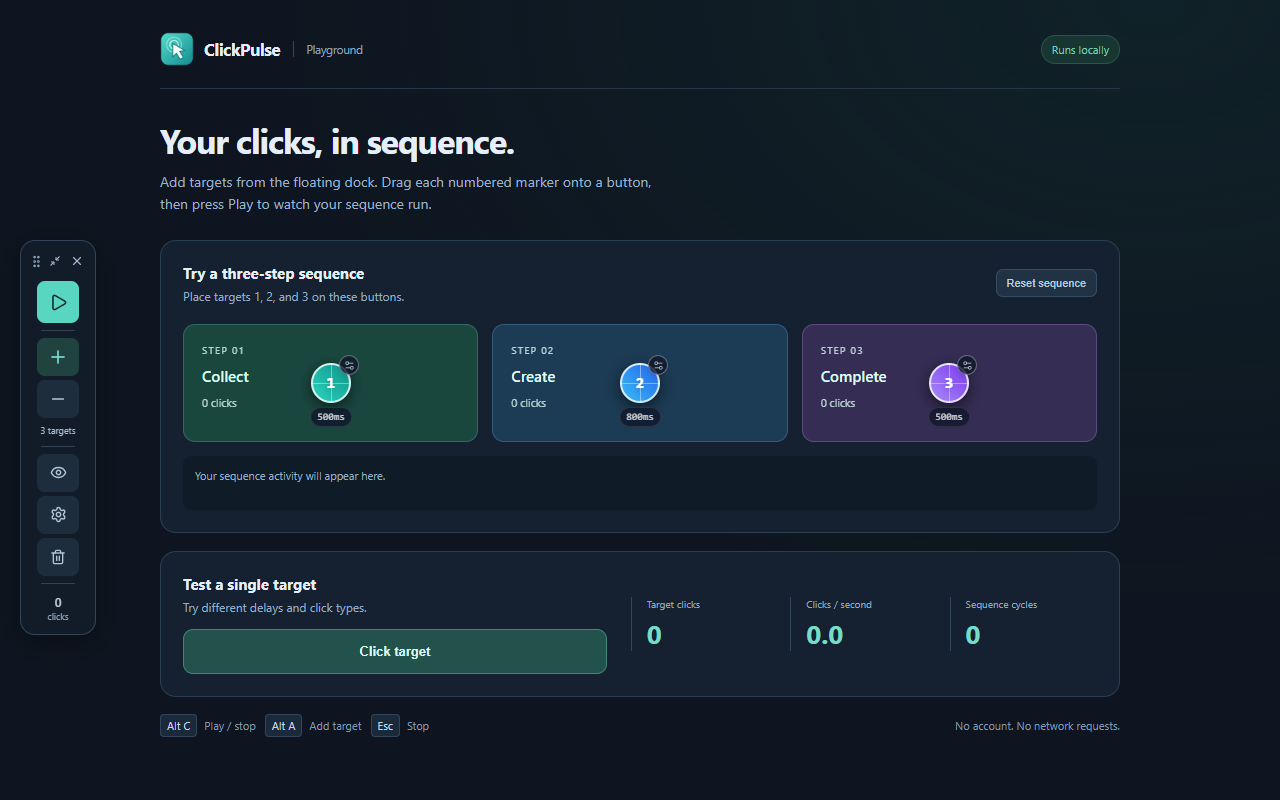
Position your targets directly on the page.
Keep your attention on the part that matters. Let your sequence handle a sequence you’ve already figured out.
Learn the controlsMove through a familiar set of buttons in a consistent order.
Repeat click interactions on a webpage or a local test playground.
Fine-tune positions and timing in the bundled playground, then use the same controls on your page.
Your visual auto clicker is ready to try in Chrome and Brave.
No account. No external server. Just your browser.
chrome://extensions or brave://extensions in the address bar and enable Developer mode.manifest.json, then pin the ClickPulse extension to your toolbar.Already have a tab open? Refresh it after installation.
Use AutoClicker in Brave with the same ClickPulse extension ZIP. Learn how to load it, set up targets, and install from a published Chrome Web Store listing.
Read the guide →Download AutoClicker’s free Chrome extension, install the ZIP, and automate webpage clicks with visual targets, custom delays, and repeat cycles.
Read the guide →Learn how to use AutoClicker in Chrome: place targets, set click delays and repeat cycles, start a sequence, and stop or close it with confidence.
Read the guide →Set up multiple click points in Chrome with AutoClicker. Arrange numbered targets, give each point its own delay, and repeat the sequence in order.
Read the guide →Understand auto clicker delays in milliseconds, per-target intervals, fixed repeat cycles, continuous clicking, and browser timing limitations.
Read the guide →Choose single, double, or right clicks for each AutoClicker target. Learn how browser click events differ from native mouse input and context menus.
Read the guide →Fix common AutoClicker setup issues: refresh Chrome tabs, check target positions and permissions, adjust delays, and understand unsupported webpages.
Read the guide →Everything you need before
your first sequence.
AutoClicker helps you automate repetitive clicks in Chrome and Brave with the ClickPulse extension. It places a floating dock and draggable numbered targets on a webpage, then clicks those positions in a sequence you configure.
It works on eligible webpages that respond to synthetic clicks. Chrome’s internal pages, closed shadow roots, and inaccessible cross-origin frames are unsupported. Some websites require trusted user input, and background tabs can slow timing.
Press Escape or the Stop button to stop a sequence. The cross icon stops clicking and removes the dock, targets, ripple effects, and restore controls. Use the popup or Alt+H to reopen ClickPulse.
Target positions, settings, counters, and the current page URL are stored locally in your browser to restore the right sequence for each tab. ClickPulse does not send this data to its developer, and has no analytics or advertising. Clicking a website’s controls can still trigger that website’s own activity.
Yes. Each tab has its own targets, settings, and counters. Refreshing the same page restores its sequence in the stopped state. Navigating to another page clears target positions.
One cycle runs all targets once in numerical order. Set a repeat count for a fixed number of cycles; 0 repeats until you stop. A double click dispatches two clicks. Right click dispatches the page’s context-menu event, rather than opening Chrome’s native context menu.
Yes. Enable “Allow access to file URLs” on ClickPulse’s extension details page, then refresh your local page. The built-in playground works without that setting or a local server.
Yes. The same ClickPulse ZIP works in desktop Brave. Open brave://extensions, enable Developer mode, and use Load unpacked to select the extracted folder. Read the Brave installation guide for store-preview and shortcut help.