
1. Place a target
Install the extension using the Chrome download guide or the Brave installation guide. Open ClickPulse, select the playground, and press the plus button. Drag the numbered marker so its center sits over the button you want to click. Add more markers for additional steps. The markers run in numerical order.
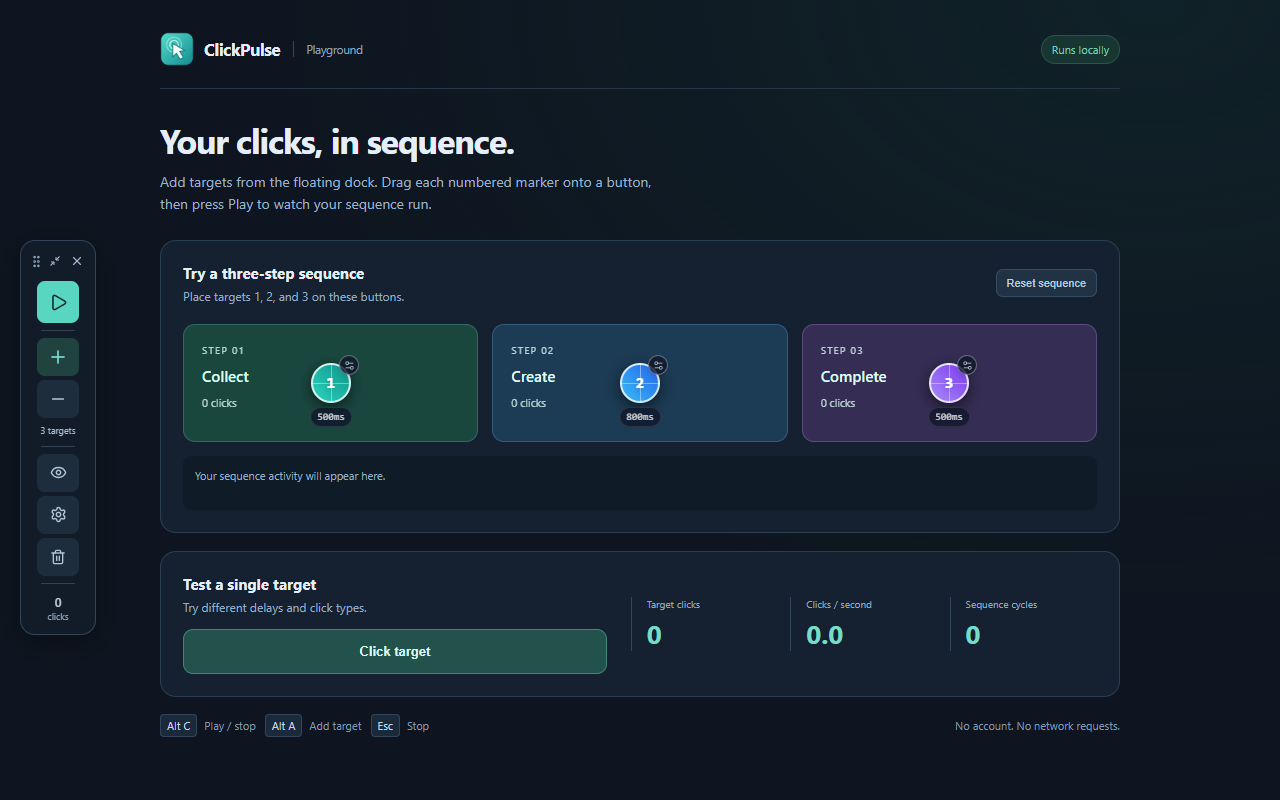
2. Set the action and timing
Open a marker’s gear control to choose single, double, or right click and its delay in milliseconds. Start with 500 ms so you can watch each step. Set the repeat count to 1 for a trial run. One cycle runs all targets once; a repeat count of 0 continues until you stop.
3. Run, check, and stop
Press Play on the floating dock or start from the popup. Watch the click and cycle counters and confirm the correct controls respond. Press Escape or Stop to end the run. To exit completely, click the dock’s cross icon: clicking stops and the dock, targets, effects, and restore controls disappear. Reopen from the extension popup or Alt+H when you need it again.
Keyboard shortcuts
- Alt + C
- Start or stop the sequence.
- Alt + A
- Add a numbered target.
- Alt + H
- Show or hide the floating dock.
- Esc
- Stop immediately while the webpage has focus.
If a shortcut conflicts with another extension or your system, review the assignments at chrome://extensions/shortcuts in Chrome or brave://extensions/shortcuts in Brave.
After a reload or navigation
Reloading the same page restores its saved sequence in a stopped state. Navigating to another page clears target positions. Always check positions after scrolling or layout changes: markers represent coordinates rather than a permanent attachment to a particular button.
For longer workflows, see multiple click targets and timing and repeat cycles.